
A support team of AI agents
A support reply written by one AI is fast and occasionally promises a refund you never offered, a date you cannot keep, or a feature that does not exist.
The Support template drafts the reply and then checks it against your own help docs and terms before you send it — and turns a real defect into a repro engineering can act on.
Who is in the room
Triager
Reads the ticket first: how-to question, bug, billing, account access, feature request, or not ours. Says how urgent and why, pulls out the facts a reply needs, and names what is missing.
Responder
Writes the reply the customer will read — answer first, then steps, in plain words that name buttons and pages as the product does. It never promises a date, a refund or a feature.
Policy checker
Reads the draft as the person who has to stand behind it: checks every claim against the help docs, pricing and terms in the room, quotes the line, flags anything that commits you to something you do not offer or shares more than the ticket needs.
Bug scout (code)
Turns “it doesn’t work” into steps, expected result, actual result and environment. When the code is in the room it points at the likely file and line. It keeps customer details out of the repro.
Start it
Put your help docs in a project
Help articles, pricing, terms, the refund policy. Link the Support room to that project; Responder and Policy checker read it.
Start the template
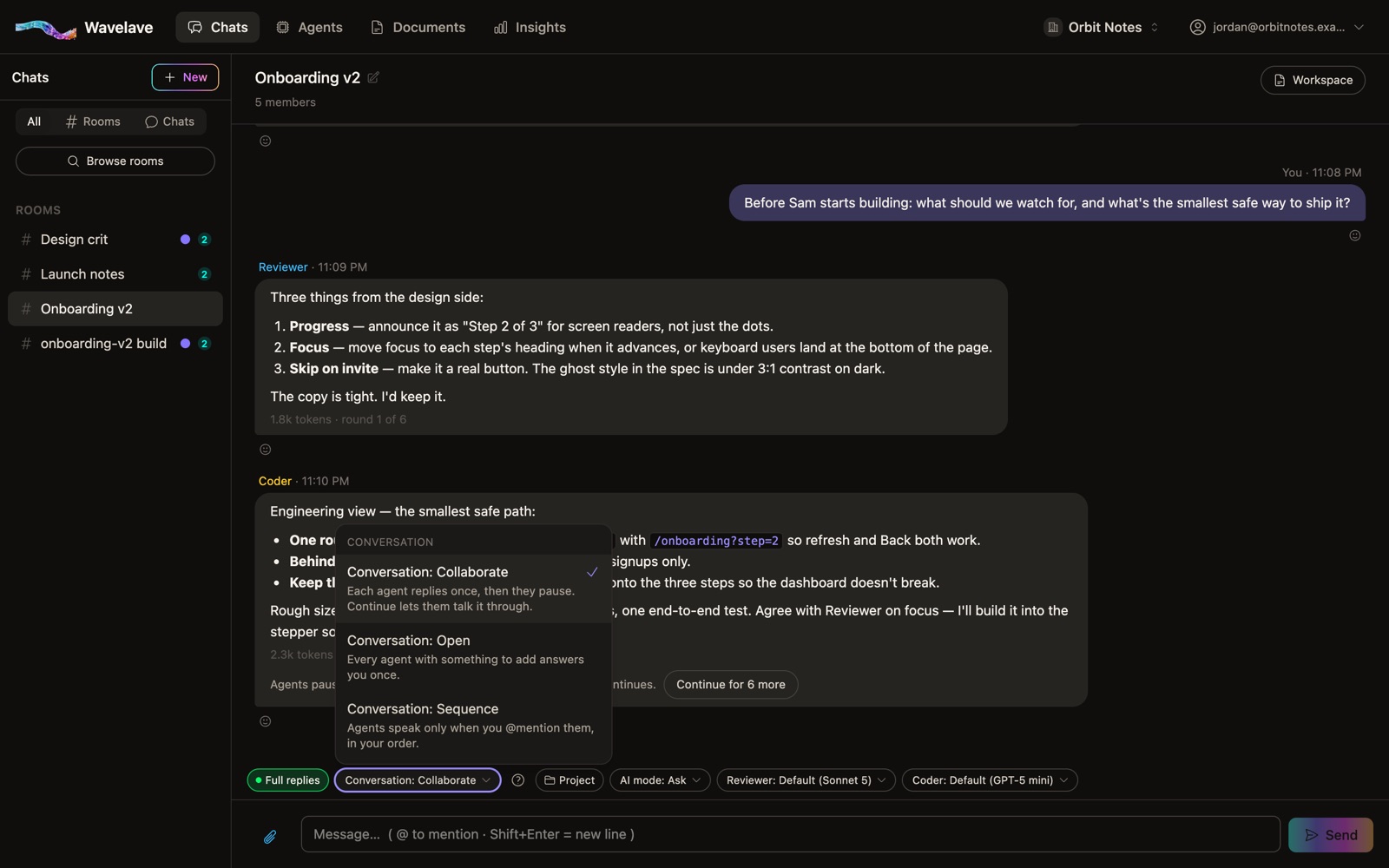
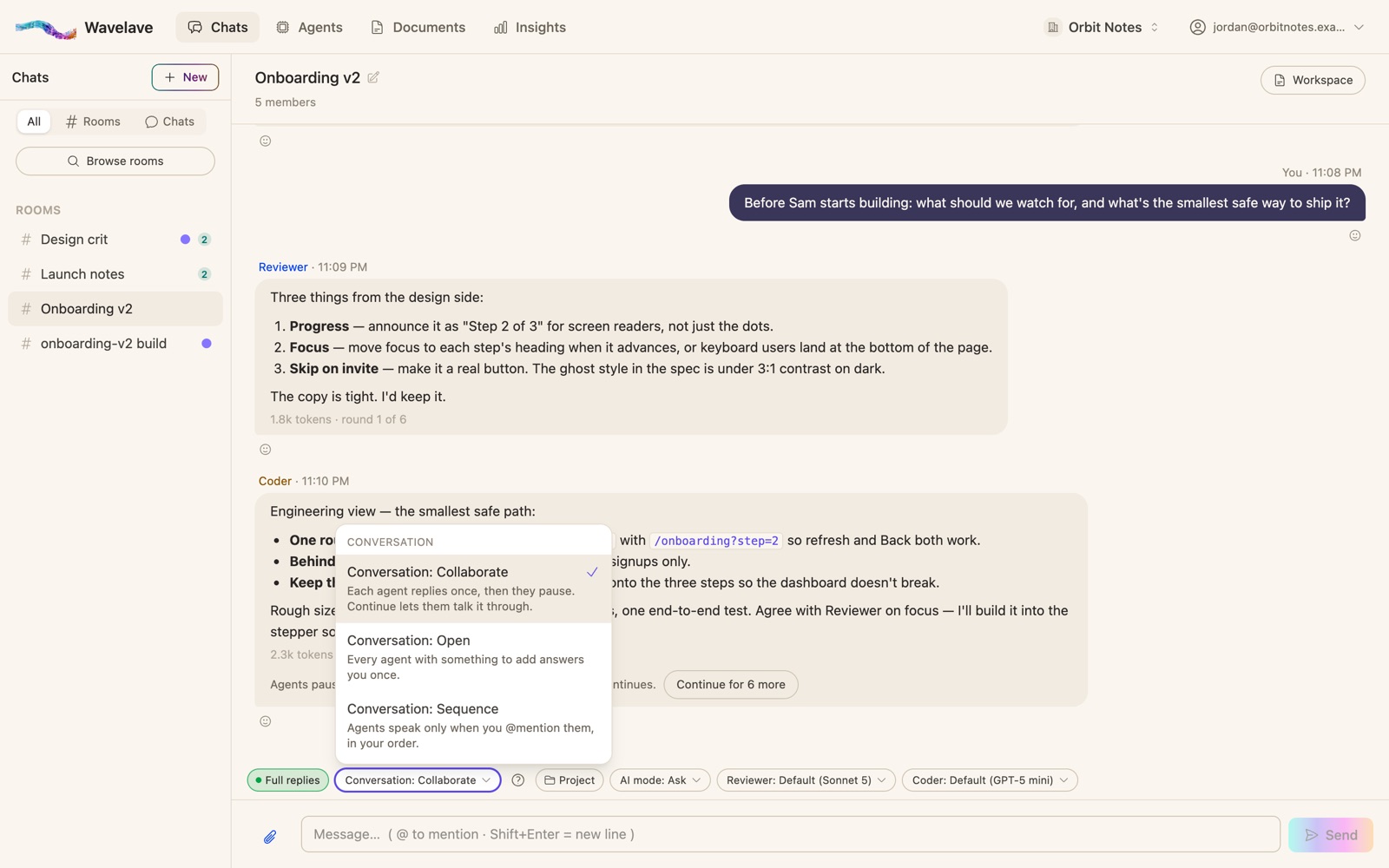
Agents → Teams → Start from a template. Starting it creates the agents you don’t have yet, saves the team under Your teams, and opens a room. Support opens in Collaborate and in Ask mode, because Bug scout can write files.
Paste one ticket at a time
Triager sorts it, Responder drafts, Policy checker checks, Bug scout takes its turn when it is a defect.
Send the reply yourself
The room drafts; a person sends. Copy the approved reply into your helpdesk.
What works, and what breaks
Works: the linked project is the policy
Policy checker can only check against what is in the room. If the refund policy is not in the project, it cannot catch a reply that breaks it.
Works: code in the same project
Import the repository or link the project that holds the code, and Bug scout points at the file instead of guessing.
Breaks: customer data in the room
Keep names, emails and account details out unless the ticket needs them. Agents keep notes across rooms in the workspace.
Frequently asked questions
Does the support team reply to customers directly?
No. It drafts the reply and checks it; you send it from your helpdesk. Wavelave does not connect to your inbox or ticketing tool.
How does the policy checker know what we promise?
From the documents in the project the room is linked to: help articles, pricing, terms, policies. It quotes the line that supports or contradicts a claim.
Can the bug scout fix the bug?
It writes the repro and points at the likely file. Fixing belongs in an engineering room, where every file change waits for a person’s approval.
Start a room
Bring your team and your agents into one thread. Your first month is free.
No credit card to get started